

10 Nov, 26
Want to monetize your SCUM server and cover your hosting costs?
Running a SCUM community takes time and money. Between hosting, moderation, and community events, the costs add up. With Tip4Serv, you can create a SCUM donation store where players can support your server and receive rewards automatically.
Sell starter kits, in-game items, fame, currency, vehicle and VIP memberships through your own SCUM webstore. After checkout, Tip4Serv can run the commands you configure for your SCUM server and deliver roles or messages through Discord.
Step 1. Create your Tip4Serv account
Sign up at tip4serv.com. From your dashboard, you can set up your storefront, connect your SCUM server, and manage products, payments, and subscriptions.
Step 2. Set up your SCUM donation store
In the Tip4Serv dashboard, go to Store Editor → Settings to configure your store.
- Choose a store name and a subdomain such as myscumserver.tip4serv.com.
- Select your store language and currency.
- Write a short description that tells players what you offer and what makes your SCUM community unique, whether you run a PvE, PvP, or roleplay server.
Step 3. Connect your SCUM server for automatic delivery
Go to My Servers and add your SCUM server. Follow the SCUM setup guide to install or verify UE4SS and configure the Tip4Serv integration on your server.
Once your server is connected, you can assign SCUM commands to each product so purchases trigger the rewards you configured. You can also connect your Discord server to grant roles, send thank-you messages, or post purchase announcements.
Step 4. Enable payments for your SCUM webstore
Open My Gateway and connect the payment providers you want to use. Tip4Serv supports more than 25 payment options, including PayPal, cards, and local payment methods. The options available at checkout depend on your payment setup.
Step 5. Create kits, items, and VIP memberships
Go to My Products and create rewards that fit your SCUM server. Here are a few ideas.
- Starter kits with clothing, food, or basic tools.
- Supply packs with medical items, gear, or building materials.
- Supporter packs that include a Discord role or access to a private channel.
- VIP memberships with recurring payments and Discord perks.
For each product, choose the SCUM server commands or Discord actions to run after payment. For a recurring VIP membership, you can also configure an expiration action to remove the Discord role when the subscription ends.
Step 6. Test your SCUM store before launch
Enable Test Mode in My Settings and simulate a purchase without charging a player. Check that the reward reaches the intended player on your SCUM server and that any configured Discord role or message is delivered. Turn off Test Mode when you’re ready to accept real payments.
Step 7. Customize and share your SCUM store
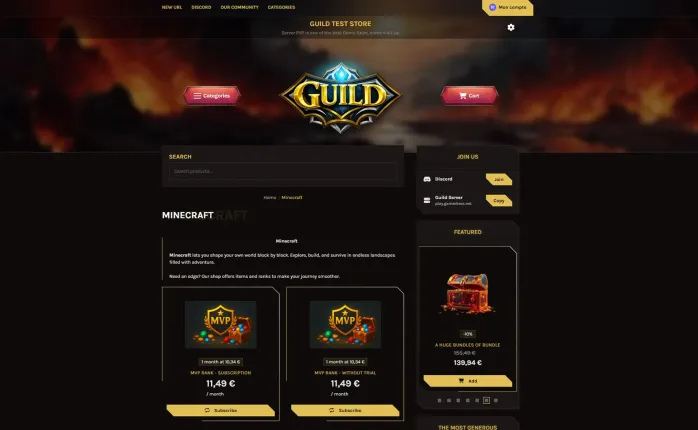
Add your community’s logo, cover image, and colors in the store customizer. Once the store is ready, share the link in your Discord server so players know where to find kits and supporter perks.
Step 8. Upgrade to Tip4Serv Pro for more customization
Tip4Serv Pro adds more storefront themes, a visual theme editor, custom CSS, and gift cards. It also lowers the Tip4Serv transaction fee from 5% to 3.8% and includes a 21-day free trial.
Start monetizing your SCUM server
Create a SCUM donation store, connect your server, and launch your first starter kit or VIP membership. Tip4Serv handles checkout and triggers your configured rewards so you can spend less time fulfilling orders manually.
Create your SCUM store with Tip4Serv
Want more players to discover your community? Add your server to the SCUM server list on TrackyServer.

Hi, my name is Simon. I'm just a simple man making my way in the universe of pop culture and video games. I am a casual gamer that loves Dark Souls and FPS.



Simon Mawas